Why Video Feels Hard — And Why It No Longer Has To Be
For most small business owners and freelancers, video still feels like a creator’s game. Expensive software. Editing skills. Fancy cameras. Long learning curves.
That belief quietly stops many teams from using video at all — even though video is now one of the most effective ways to explain services, onboard clients, share updates, and build trust.
Here’s the reality I’ve seen first-hand: You don’t need to be a creator to create useful business videos.
If you already use Google Docs, Google Slides, or PowerPoint, you’re sitting on tools that can cover 70–80% of everyday business video needs — at little to no additional cost.
This article breaks down what actually works, what’s free or low-cost, where the limits are, and how small teams can start without overthinking tools.
What “No-Cost Video Creation” Really Means for Small Businesses
Let’s be clear upfront. “No-cost” does not mean cinematic videos or YouTube-creator workflows.
It means:
• Turning documents and slides into videos
• Recording short explainers or walkthroughs
• Creating training, onboarding, or update videos
• Doing all of this without learning video editing
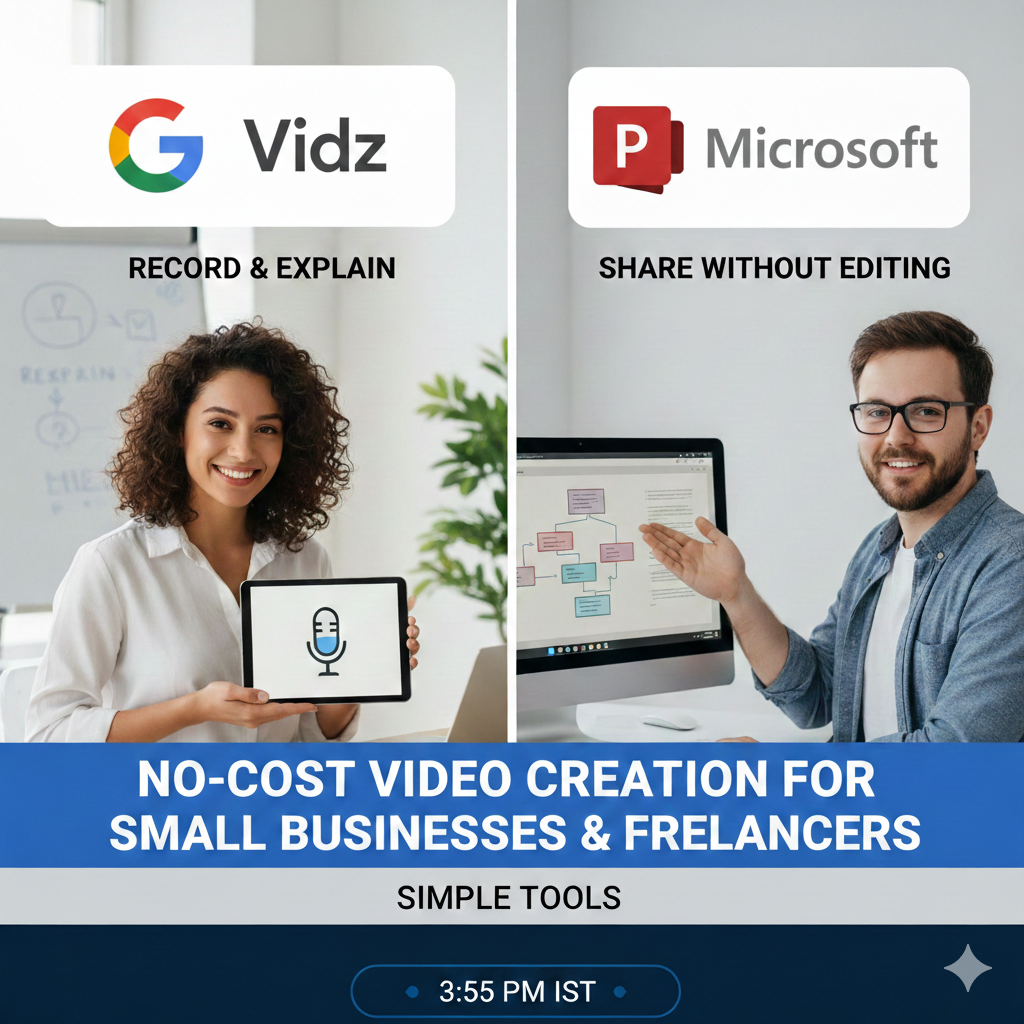
Two tools stand out for this approach:
🎬 Google Vids (inside Google Workspace)
📊 Microsoft PowerPoint (including PowerPoint 2021)
I’ve used both — not as a creator, but as a consultant and founder — and the difference matters.
Google Vids: The Fastest Way From Document to Video
What Google Vids Is (In Plain Language)
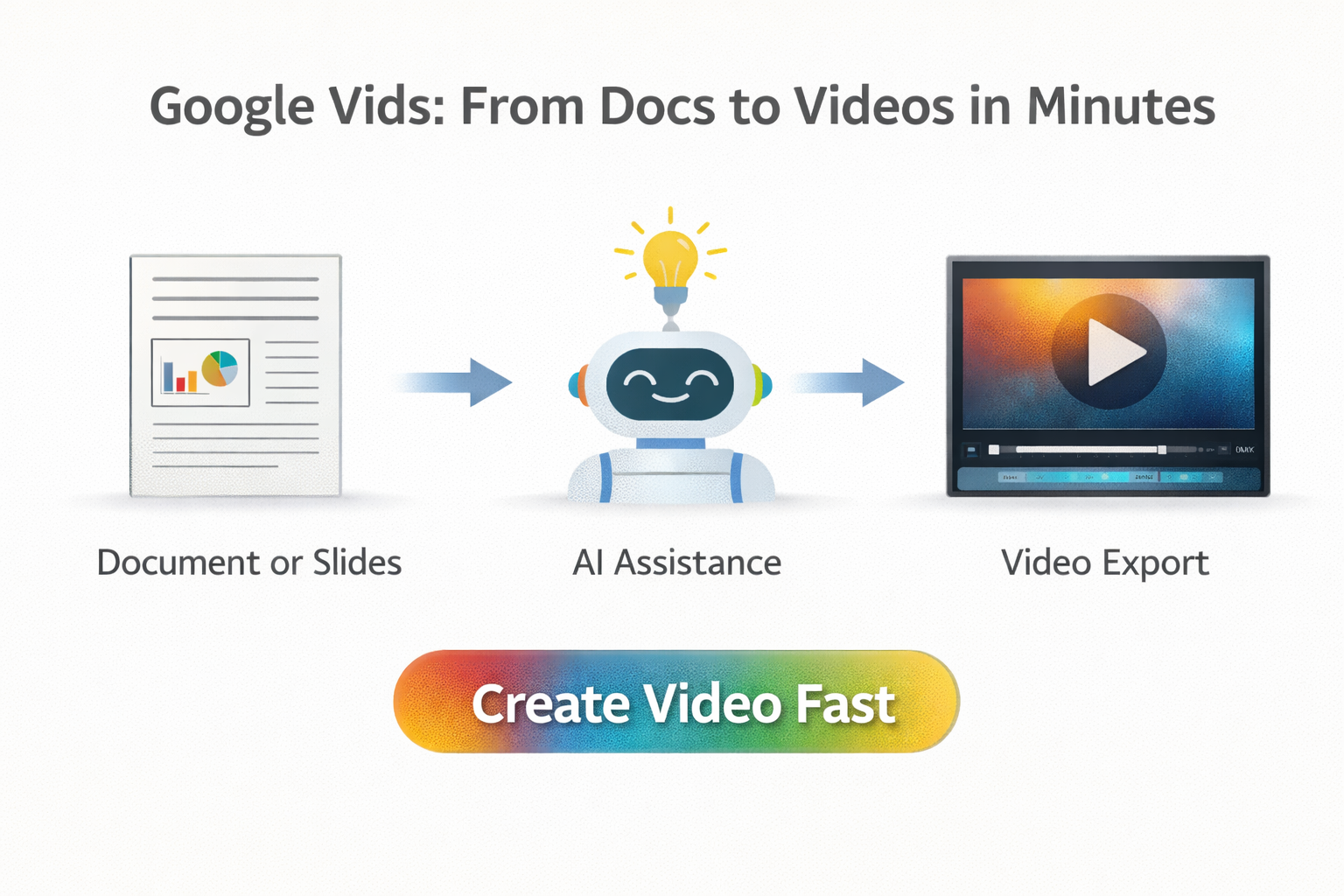
Google Vids is best thought of as: Google Docs, but for short business videos.
It’s designed for people who already work in Google Docs and Slides — not professional editors. Instead of starting with a blank timeline, you start with a prompt, a document, or a set of slides — and the tool helps assemble a video draft for you.
Pricing & Access (What Small Teams Should Realistically Expect)
Google Vids is bundled with Google Workspace plans:
• Business Starter – low monthly cost, suitable for solo founders
• Business Standard / Plus – more storage and collaboration
While limited access may exist for some accounts, AI-assisted features like script generation, auto-editing, and “Help me create” require a paid Workspace plan.
Important context for 2026: Current AI features are promotional. Pricing and access may evolve after mid-2026.
Practical takeaway: Use Google Vids for speed today, but don’t assume AI features will always be free.
Where Google Vids Genuinely Shines
From real usage, Google Vids works best for:
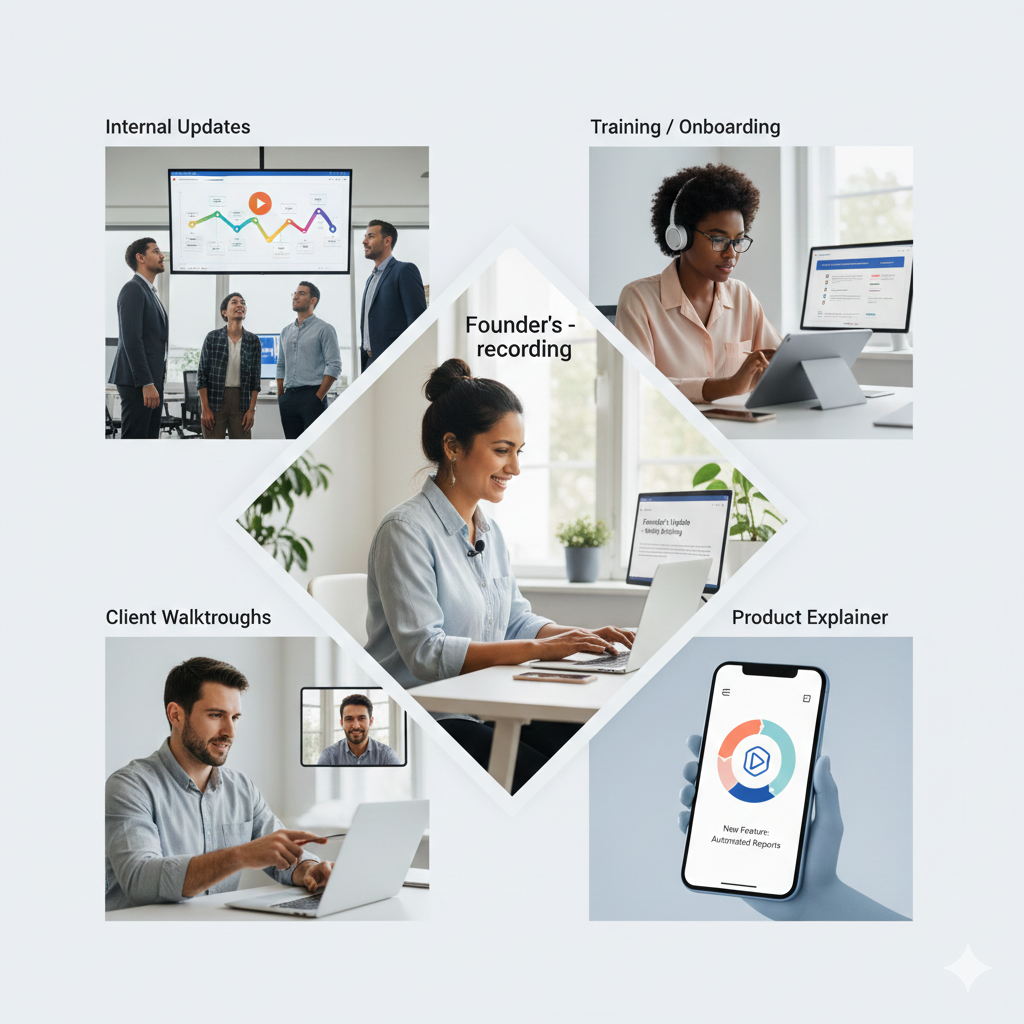
• Internal updates and announcements
• Client walkthroughs and proposals
• Onboarding and training videos
• Product or service explainers
• Event recaps and quick promos
What small teams appreciate most:
✅ AI creates a usable first draft in minutes
✅ No editing knowledge required
✅ Uses content already stored in Drive
✅ Built-in stock visuals and music
✅ Real-time collaboration, just like Docs
Founder Notes From Actual Usage (Not Marketing Claims)
Having tested Google Vids hands-on, here’s the honest view:
• If you’re comfortable with Google Slides, the learning curve is small
• Editing is not intuitive at first — it’s functional, not creative
• One standout feature: record a video in English and let the tool generate a script from your own speech
• That script can then be used to remove pauses, filler words, and awkward gaps automatically
• For short live recordings, staying under 10 minutes and using auto-cleanup makes a big difference
• The built-in music library is surprisingly good and avoids copyright stress
One unexpected win: Audio quality was noticeably better than recording via OBS with an external DJI mic. Even my video editor confirmed this — which says a lot for a browser-based tool.
Real-World Example: How I Used Google Vids for a YouTube Video
As a real test, I used Google Vids to record and do basic screen editing for my YouTube video: “I Built a 9-Point Framework to Evaluate Viral AI Tools — Moltbot Failed Hard.”
I recorded the video in two separate parts inside Google Vids, did basic screen edits within Vids itself, and then merged both videos using a custom AI Video Merge agent I built on Anti Gravity.
This workflow worked surprisingly well for:
• Recording clean screen + voice content
• Doing quick, functional edits without a traditional video editor
• Exporting usable video segments fast
It’s a good example of how non-creators can still produce serious, long-form content using simple tools — as long as expectations are clear.
👉 Watch the video here: I Built a 9-Point Framework to Evaluate Viral AI Tools — Moltbot Failed Hard
Real Limitations You Should Know Before Committing
Google Vids is intentionally constrained:
⚠️ 10-minute hard limit per video
⚠️ Desktop-only creation
⚠️ Internet required at all times
⚠️ Limited creative and branding control
⚠️ AI performs best in English
Bottom line: Google Vids prioritizes speed and clarity over creative freedom.
PowerPoint: The Most Underrated Video Tool for Freelancers
A Critical Clarification
You do not need Microsoft 365 or Copilot to create professional videos in PowerPoint.
If you already own PowerPoint 2021 (one-time license), you are fully equipped. Many freelancers already have this — they just never thought of PowerPoint as a video tool.
What PowerPoint 2021 Can Already Do
PowerPoint allows you to:
✅ Export slides as MP4 or WMV videos
✅ Record narration and timings
✅ Embed videos inside slides
✅ Export in Full HD or 4K
✅ Work offline
✅ Create videos of unlimited length
For most business needs, this is more than sufficient.
Where Newer Versions Add Value (Optional, Not Required)
Microsoft 365 and Copilot add conveniences like:
• Eye-contact correction
• AI rehearsal coaching
• Auto summaries from slides
Helpful — but not essential.
Reassurance for small teams: You don’t need AI add-ons to create effective business videos.
Why PowerPoint Still Matters
PowerPoint offers:
✅ Full creative control
✅ Strong brand consistency
✅ No length limits
✅ Offline work
✅ Dual use (live presentation + video)
Trade-off: More manual effort than Google Vids, but far more polish.
Google Vids vs PowerPoint: Practical Decision-Making
Here’s a practical comparison to help you decide:
Use Google Vids When:
• Speed matters more than polish
• You want AI to do the heavy lifting
• Videos are internal or informational
• Non-technical team members are involved
Use PowerPoint When:
• Brand consistency matters
• Videos are client-facing
• Content exceeds 10 minutes
• You want full control
Smart teams use both: Draft fast videos in Google Vids. Create polished assets in PowerPoint.
The Real Mindset Shift for 2026
The biggest blocker to video adoption isn’t software. It’s mindset.
If you can create documents or slides, you can already create videos.
You don’t need:
❌ Premiere Pro
❌ Final Cut
❌ After Effects
❌ A content team
You need:
✅ Clear thinking
✅ Simple tools
✅ Willingness to press “Export as video”
Final Takeaway
Google Vids lowers the barrier to video creation. PowerPoint delivers polish without turning founders into editors.
The real question isn’t: “Which tool is better?”
It’s: Do I need speed today — or control?
For most small businesses and freelancers, having both is the smartest, lowest-stress path forward.
About Anautomate
Anautomate helps small teams and solo founders use AI and no-code tools to save time, reduce manual work, and scale — without complex tech stacks or vendor lock-in.
👉 Ready to Create Your First Business Video?
Let’s help you get started with the right tools and workflow.
📩 Contact us: contact@anautomate.com